Sometimes you might select the wrong nominal account for a transaction; such as customer invoices and credit notes, supplier invoices and credit notes, bank receipts and payments, and nominal journals.
This is an easy mistake to make and is straightforward to correct.
-
For customer invoices and credit notes or supplier invoices and credit note, use the Correct transactions screens to reverse the original transaction and create a new one.
-
For bank receipts and payments, enter a journal to move the values between nominal accounts.
Correct customer invoices and credit notes
How to correct customer invoices and credit notes that have been posted to the wrong nominal account.
Open: Customers > Amend Transactions > Correct Transactions.
- Select the customer account.
-
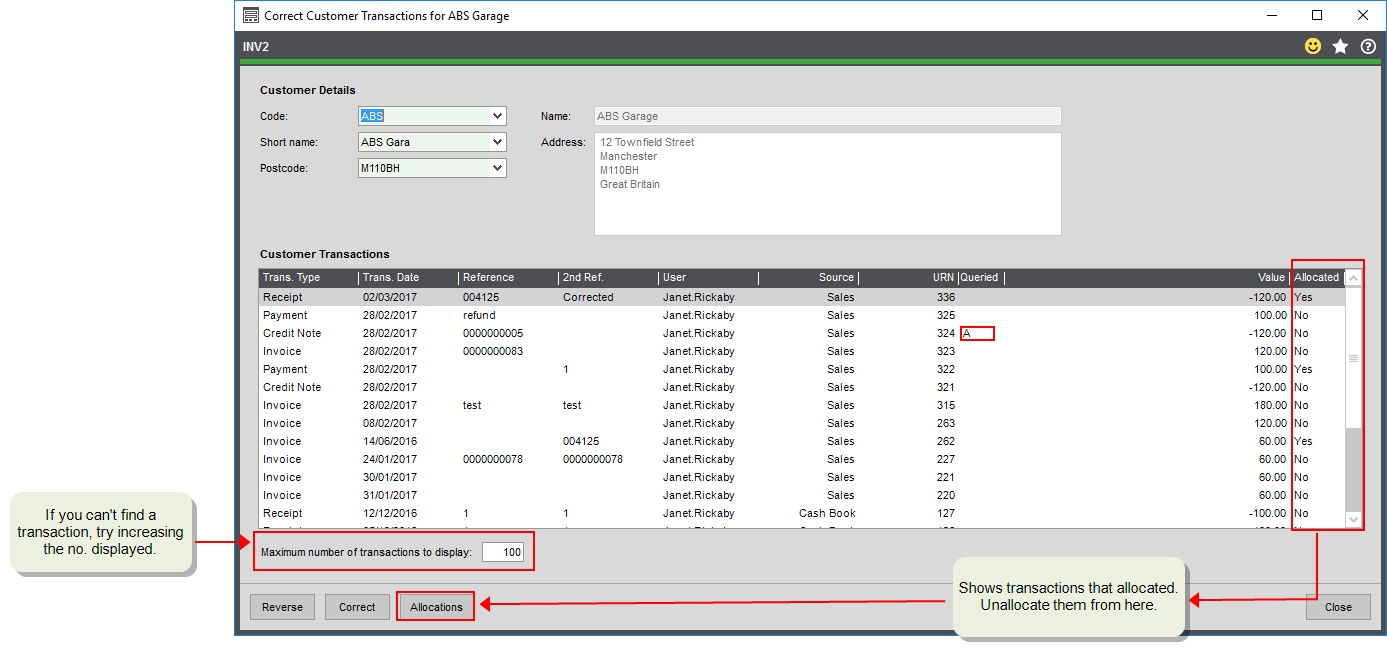
If the transaction is allocated, you'll need to unallocate it first.
-
Highlight it from the list and click Allocations.
-
Make sure it's selected on the next screen and click Reverse. Then choose Debit and Credit.
-
Click Save and then Close the Amend Allocations screen. This returns you to the Correct Transactions screen
-
-
Make sure the transaction is still highlighted and click Correct.
-
Change to the required nominal account and click Post corrections.
-
If required, allocate the receipt back to the invoice.
See Correct posted customer transactions.
Things to consider (customer and supplier transactions)
For customer and supplier transactions, check the following:
-
For customer or supplier transactions with VAT, both the original and new transaction will appear on your next VAT Return.
-
Customer or supplier transactions that are allocated will need to be unallocated first.
-
For any transactions with a query flag, you'll need to remove the query flag first.
You can remove the query flag from the Allocation screen, Customer Transaction Enquiry screen or Current Transaction Enquiry workspace.
Correct supplier invoices and credit notes
How to correct supplier invoices and credit notes that have been posted to the wrong nominal account.
Open: Suppliers > Amend Transactions > Correct Transactions.
-
Select the supplier account.
-
If the transaction is allocated, you'll need to unallocate it first.
-
Highlight payment and click Allocations.
-
Select the payment , click Reverse, and then choose Debit and Credit.
-
Click Save and then Close the Amend Allocations screen.
-
-
Select the transaction and click Correct.
-
Change to the required nominal account and click Post corrections.
-
If required, allocate the payment back to the invoice.
Correct bank receipts and payments
How to correct bank receipts and payments that have been posted to the wrong nominal account. This applies to customer receipts, supplier payments, Nominal Vatable payment, Nominal Vatable receipt, Nominal Non-Vatable payment, and Nominal Non-Vatable receipt.
Use journals to move the values between nominal accounts. Each journal entry must follow double-entry bookkeeping principles and balance (the debit and credit amounts must equal) before it can be posted.
Correct bank receipts
How to correct bank receipts that have been posted to the wrong nominal account.
-
From the Nominal List, select Journal
 .
. -
Select New journal entry and Single entry.
-
Enter a Date and Title for the journal.
-
Enter the Debit amount for the incorrect nominal account you accidentally posted the transaction to.
-
Enter the Credit amount for the correct nominal account.
Example for bank receipts
Example of correcting a bank receipt that has been posted to the wrong nominal account.
You've entered a nominal receipt for £100 and posted it to 3930 Royalties instead of 3940 Commissions. This has incorrectly credited the 3930 Royalties account.
To correct this you post the following journal: debit 100 to the incorrect account 3930 Royalties, credit 100 to the correct account 3940 Commissions.
Correct bank payments
How to correct bank payments that have been posted to the wrong nominal account.
-
From the Nominal List, select Journal
. -
Select New journal entry and Single entry.
-
Enter a Date and Title for the journal.
-
Enter the Credit amount for the incorrect nominal account you accidentally posted the transaction to.
-
Enter the Debit amount for the correct nominal account.
Example for bank payments
Example of correcting a bank payment that has been posted to the wrong nominal account.
You've entered a nominal payment for £100 and posted it to 7200 Electricity instead of 7201 Gas. This has incorrectly debited the 7200 Electricity account.
To correct this you post the following journal: credit 100 to the incorrect account 7200 Electricity, debit 100 to the correct account 7201 Gas.
Correct nominal journal transactions
How to correct nominal journal transactions that have been posted to the wrong nominal account.
Open: Nominal > Nominal Current Transactions.
-
Find the journal you want to change from the list.
-
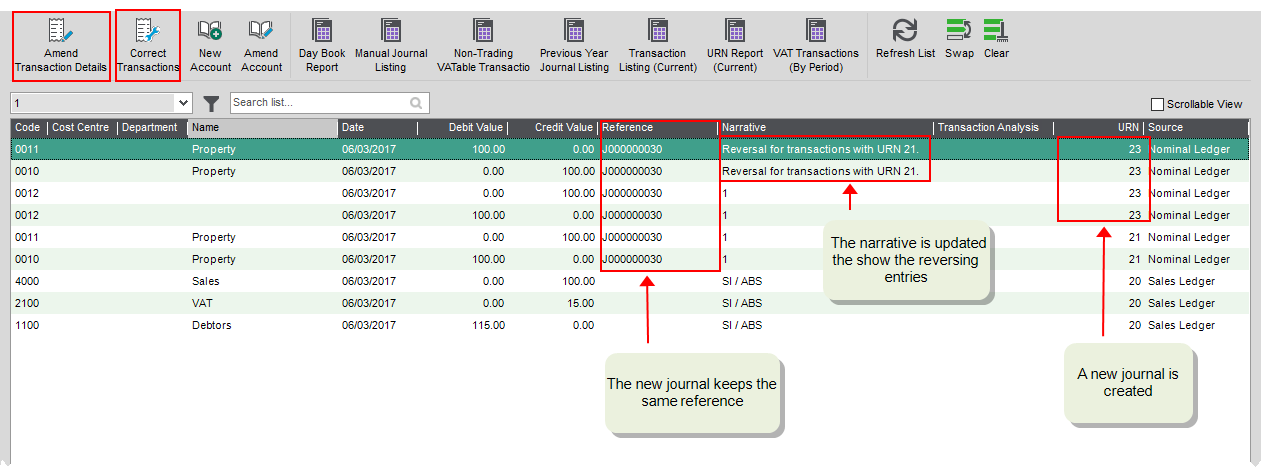
Click Correct Transactions.
-
Select the correct nominal account or amount and click Post Corrections. This creates a new journal that reverses the original and adds new lines for the changes. The narrative is updated with the URN of the original journal.