
Sometimes you might select the wrong bank account for a transaction; such as customer receipts, supplier payments, and nominal receipts and payments.
To maintain the integrity of your data, you can't delete transactions once they're posted. In general when you correct mistakes a reverse transaction is created with the same details as the original and a new transaction with your corrections is created.
Things to consider
-
Payments and receipts will need to be unreconciled or removed from a draft reconciliation before they can be amended.
How to unreconcile a transactionOpen: Period End Routines > Bank Reconciliation > Unreconcile Bank Transactions.
-
Select the bank account.
- Enter a date range and click Display.
-
Find the transaction to unreconcile from the top list.
- Double-click to move it to the bottom list.
- Click Unreconcile.
-
-
To help bank reconciliation, change the Reference on the new transactions to help identify them from the original transaction.
-
For vatable receipts and payments, both the original and new transaction will appear on your next VAT return.
-
Customer receipts or supplier payments that are allocated will need to be unallocated first.
-
For any transactions with a query flag, you'll need to remove the query flag first.
How to remove a query flagYou can remove the query flag from the Allocation screen, Customer Transaction Enquiry screen or Current Transaction Enquiry workspace.
Correct customer receipts in base currency
How to correct customer receipts in the base currency that have been entered for the wrong bank account.
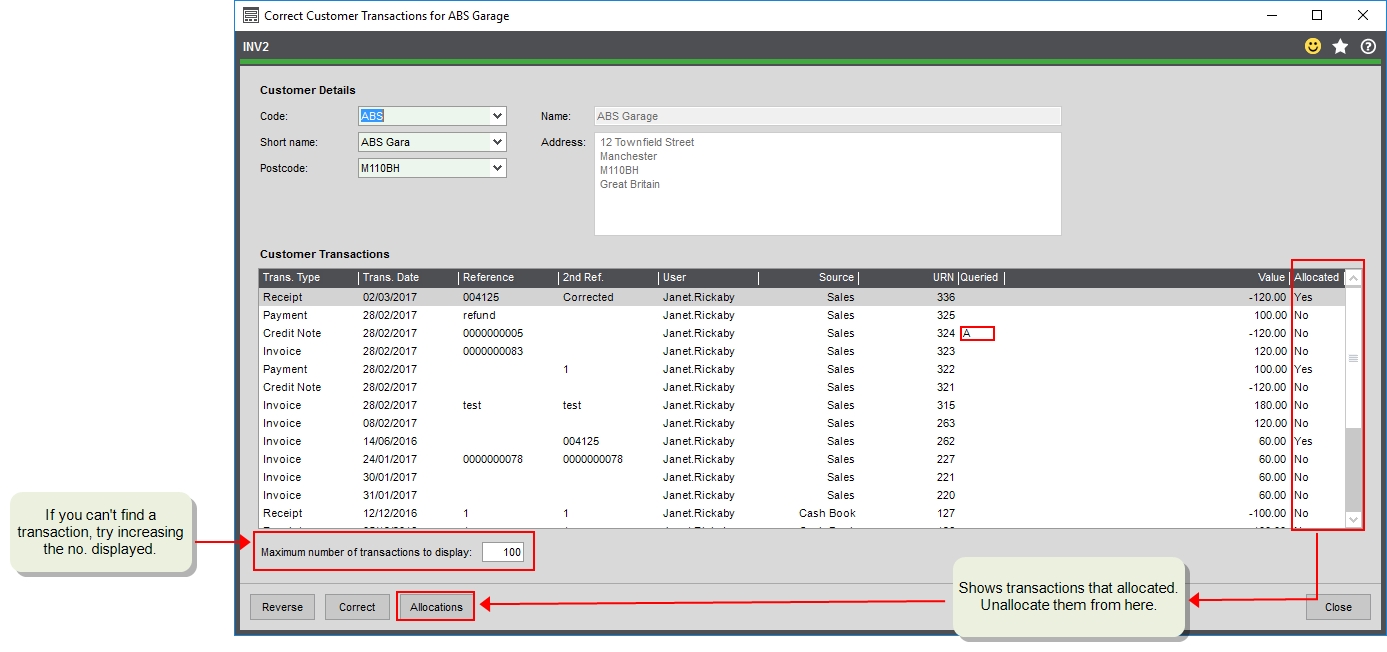
Open: Customers > Amend Transactions > Correct Transactions.
-
Select the customer account.
-
If the receipt is allocated, you'll need to unallocate it first.
-
Highlight it from the list and click Allocations.
-
Make sure it's selected on the next screen and click Reverse. Then choose Debit and Credit.
-
Click Save and then Close the Amend Allocations screen. This returns you to the Correct Transactions screen
-
-
Make sure the receipt is selected and click Correct.
-
Change to the required bank account and click Post corrections.
-
If required, allocate the receipt back to the invoice.
What if the receipt was paid via Opayo (formerly Sage Pay)
Receipts entered using Opayo can only be reversed rather than corrected. If you've made an error:
-
Reverse the receipt first. This will process a refund to the card.
You can only do this is if you have access to refund card payments.
- Create a new receipt.
Correct supplier payments in base currency
How to correct supplier payments in the base currency that have been entered for the wrong bank account.
Open: Suppliers > Amend transactions > Correct Transactions.
-
Select the supplier account.
-
If the payment is allocated, you'll need to unallocate it first.
-
Highlight payment and click Allocations.
-
Select the payment , click Reverse, and then choose Debit and Credit.
-
Click Save and then Close the Amend Allocations screen.
-
-
Select the payment and click Correct.
-
Change to the required bank account and click Post corrections.
-
If required, allocate the payment back to the invoice.
Correct nominal receipts and payments in base currency
How to correct nominal receipts and payments in the base currency that have been entered for the wrong bank account. This applies to Nominal Vatable payment, Nominal Vatable receipt, Nominal Non-Vatable payment, and Nominal Non-Vatable receipt.
For nominal receipts and payments, you must manually reverse the receipt or payment, and then enter a new receipt or payment.
To reverse the receipt or payment, enter the opposite transaction with the same details; such as date, bank account amount, value.
-
To reverse a Non-Vatable payment enter a Non-Vatable receipt.
-
To reverse a Non-Vatable receipt enter a Non-Vatable payment.
-
To reverse a Vatable payment enter a Vatable receipt.
-
To reverse a Vatable receipt enter a Vatable payment.
Reverse the existing transaction
Open: Cash Book > Bank Account List > Payments
Open: Cash Book > Bank Account List > Receipts
-
Choose the correct transaction type: Non-Vatable payment, Non-Vatable receipt, Vatable receipt, or Vatable payment.
-
Select the same bank account as the original transaction.
-
Enter the same details as the original transaction for the date, amount, and nominal account.
Tip: Update the Narrative and Reference to show that this is a correction.
-
For Vatable receipts and payments, make sure you select the same the VAT code.
-
Select Save.
Enter a new receipt or payment
Open: Cash Book > Bank Account List > Payments
Open: Cash Book > Bank Account List > Receipts
-
Select the new bank account.
-
Enter the same details as the original transaction for the date, amount, and nominal account.
-
For Vatable receipts and payments, make sure you select the same the VAT code.
-
Select Save.
Correct receipts and payments in a foreign currency
How to correct receipts or payments in a foreign currency that have been entered for the wrong bank account. This applies to customer receipts, supplier payments, and nominal payments and receipts.
Foreign currency receipts and payment can't be amended in the same way. To change the bank account for customer and supplier receipts and payments, you need to reverse the original transaction by entering the opposite receipt or payment and then create a new one with the correct bank account.
Correct customer receipts in a foreign currency
How to correct customer receipts in a foreign currency that have been entered for the wrong bank account.
To do this:
-
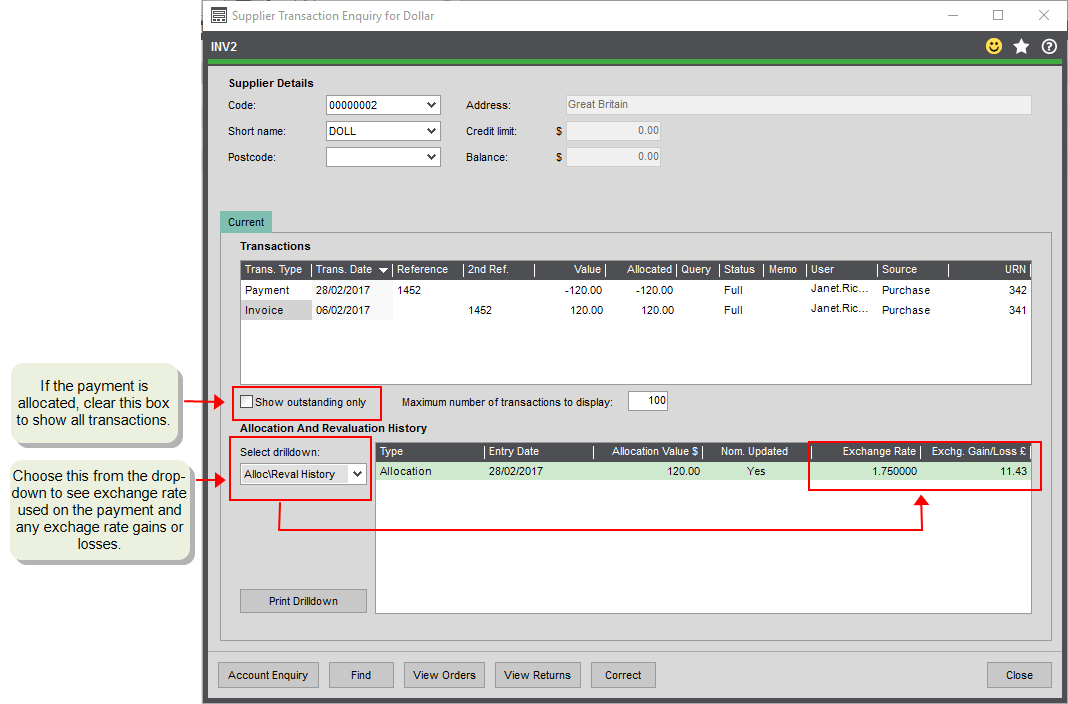
Check the original receipt amount and the exchange rate used. You can so this using the Customer Transaction Enquiry (Customer List > Transaction Enquiry).
-
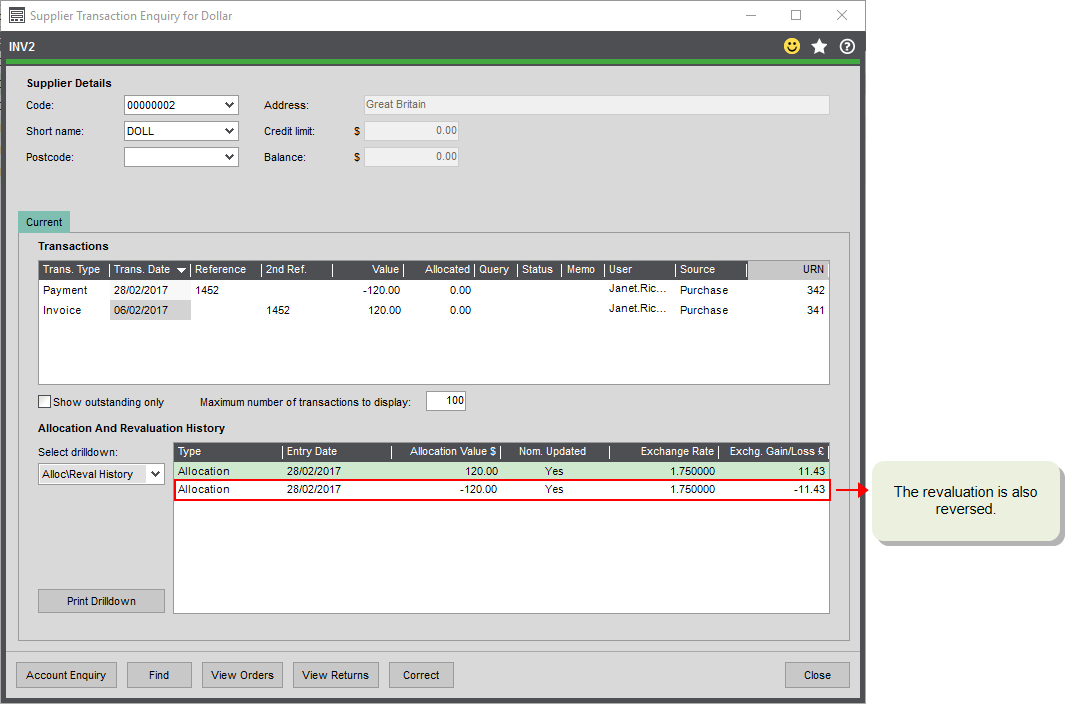
If the receipt has been allocated to an invoice, then unallocate it (Customers > Amend Transactions > Amend Allocation). If there were any exchange rate differences, these will automatically be reversed. You can see this on the Customer Transaction Enquiry.
 To unallocate a receipt
Open: Customers > Amend Transactions > Amend Allocation.
- Select the receipt and click Edit.
- Select the receipt, click Reverse, and choose Debit and Credit.
- Click Save.
-
Enter a sales payment to reverse the original receipt. Make sure the payment is for the same bank account, amount (in foreign currency) and uses the same exchange rate as the original receipt.
To enter the paymentCustomers > Customer List > Payment.
- Select the bank account.
- Select the customer.
- Make sure the value (in the foreign currency) matches the original receipt.
- Make sure the exchange rate is the same as the rate used for the original receipt. Click
 to change the exchange rate.
 - Click Save and Allocate.
- Allocate the new payment to the original receipt.
-
Enter a new receipt. Check that the exchange rate is correct. It will use the current exchange rate set in Sage 200 by default.
To enter the receiptCustomers > Customer List > Receipt.
- Select the bank account.
- Select the customer.
- Make sure the value (in the foreign currency) matches the original receipt.
- Make sure the exchange rate is the same as the rate used for the original receipt. Click to change the exchange rate.
- Click Save and Allocate.
Correct supplier payments in a foreign currency
How to supplier payments in a foreign currency that have been entered for the wrong bank account.
To do this:
-
Check the original payment amount and the exchange rate used. You can so this using the Supplier Transaction Enquiry (Supplier List > Transaction Enquiry)
-
If the payment has been allocated to an invoice, then unallocate it (Suppliers > Amend Transactions > Amend Allocation). If there were any exchange rate differences, these will automatically be reversed. You can see this on the Supplier Transaction Enquiry.
To unallocate the paymentOpen: Suppliers > Amend Transactions > Amend Allocation
- Select the payment and click Edit.
- Select the payment, click Reverse, and then choose Debit and Credit.
- Click Save.
-
Enter a purchase receipt to reverse the original payment. Make sure the receipt is for the same bank account, amount (in foreign currency) and uses the same exchange rate.
To enter the receiptOpen: Suppliers > Supplier List > Receipt
- Select the bank account.
- Select the supplier.
- Make sure the value (in the foreign currency) matches the original payment.
- Make sure the exchange rate is the same as the rate used for the original payment. Click to change the exchange rate.
- Click Save and Allocate.
- Allocate the new receipt to the original payment.
-
Enter a new payment. Check that the exchange rate is correct. It will use the current exchange rate set in Sage 200 by default.
To enter the new paymentSupplier List > Payment
- Select the bank account.
- Select the supplier.
- Enter the new payment details.
- Check the exchange rate. Don't forget the new payment will use the current rate set in Sage 200 by default. Click to change the exchange rate.
- Click Save and Allocate.
- Allocate the new payment to the original invoice.
Correct nominal receipts and payments in a foreign currency
How to correct nominal receipts and payments in a foreign currency that have been entered for the wrong bank account.
For nominal receipts and payments, you must manually reverse the receipt or payment with the same exchange rate and re-enter it.
-
Make sure the reverse uses the same exchange rate.
-
Make sure any bank charges are also reversed when applicable. Don't forget, when reversing bank charges, the charge will need to be entered tin the currency of the transaction and may need to be entered as negative value. For example, to reverse a 0.25 charge on a payment, enter -0.25 on the receipt.
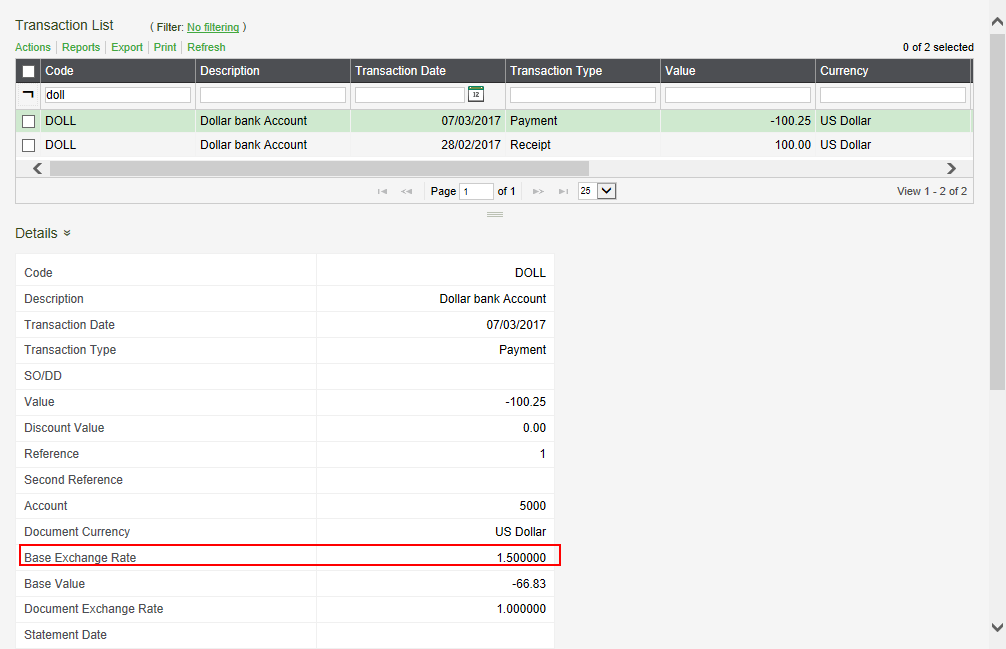
Open: Cash Book > Bank Account Enquiries > Bank Transaction Enquiry.
-
Use the quick filters in the toolbar to find the receipt or payment.
-
Select Details from the bottom section. This shows you the details of the transaction including the exchange rate.
Open: Cash Book > Bank Account List > Payments
Open: Cash Book > Bank Account List > Receipts
-
Select the same bank account as the original.
-
Enter the same date, exchange rate amount and nominal account.
-
For Vatable receipts and payments, select the same the VAT code.
-
Select Save.
Open: Cash Book > Bank Account List > Payments
Open: Cash Book > Bank Account List > Receipts
-
Select the new bank account.
-
Enter the same date, amount and nominal account as the original.
Tip: Update the Narrative and Reference to show that this is a correction.
-
For Vatable receipts and payments, make sure you select the same the VAT code.
-
Select Save.