
The menu is on the left side on the Sage 200 desktop and displays all the windows available in Sage 200 or a list of your favourites.
The menu can be displayed either maximised to keep the menu visible, or minimised to shrink the menu when it's not being used.

When the menu is pinned to the desktop, it is visible all the time. If you want the menu to be hidden when you're not using it, click Unpin from Desktop  .
.
To change the size of the menu, hover on the edge of the menu so the resize icon  appears, then click and drag to resize the area.

When the menu is unpinned (or minimised), the menu will only be displayed when you select an item.

The menu will disappear again when you select an item. If you want to display the full menu all the time, click Pin  .
.

Menu
You can use the menu to access Sage 200 modules and windows to enter information, perform tasks and run reports.
Select the menu icon  to display the menu.
The menu options are grouped into modules, for example Suppliers contains tasks to create supplier accounts and view transactions. Most modules will include a list view and a process map. Workspaces can be found in the menu for each module, and are also duplicated in the Workspaces menu option.

Click on a menu item to open it, or right-click on the item for a context menu.
Context menu actions:
-
Select Add to Favourites to add this item to your favourites.
-
Select Open in New Window to display a list or workspace in a separate window.
-
Select Make this my Home Page to set a list or workspace as your home page.
If you are not sure where something is that you are looking for, you can use the Search menu ... box to find it.

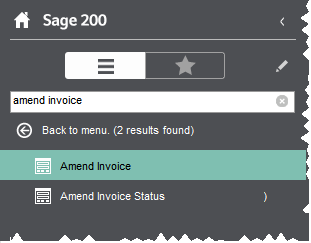
Enter text that you want to find, for example, the name of a field, a form, a report. The search looks for matching text across forms, workspaces, lists, process maps and summaries. The results are shown in alphabetical order in two groups. The first group lists menu items that contain the text in their title. The second group includes items that either contain or are related to the search term, for example a form that includes the term.
Note: The results will only show you what you have permission to see. For example, if you do not have access to certain options, you would not see those in the list of results.
If you have admin access, you can customise the menu for all Sage 200 users.
Action bar (toolbar)
The options in the menu are also available from desktop lists, by using the Action bar at the top of the desktop list.

This means you can minimise the menu and still have access to the actions you need within each module.
Favourites
You can use Favourites to create your own menu. You can just add the forms that you need to us so that you can get to them quickly To do this you just:.
Select the favourites icon  to display your favourites.
- When you're using a form or list in Sage 200, click to add it to your Favourites menu.
- Organise the menu the way that you want; click Edit Favourites
 .
. - Share your favourites menu with others, by exporting and importing them.
- You can show your favourites on the Home page, by using the Home Page Favourites folder.